
AI job match score
AI-powered features are available throughout the platform and are listed below.
Each candidate will have an automatically generated job match score comparing their resume to your job description.
The criteria behind this score are defined per job. When you create a job, the AI Scoring tab is empty — click Generate with AI to seed criteria from the job description, then edit, add, or remove them to match the role. See Customizing your AI Job Match criteria for the full walkthrough.
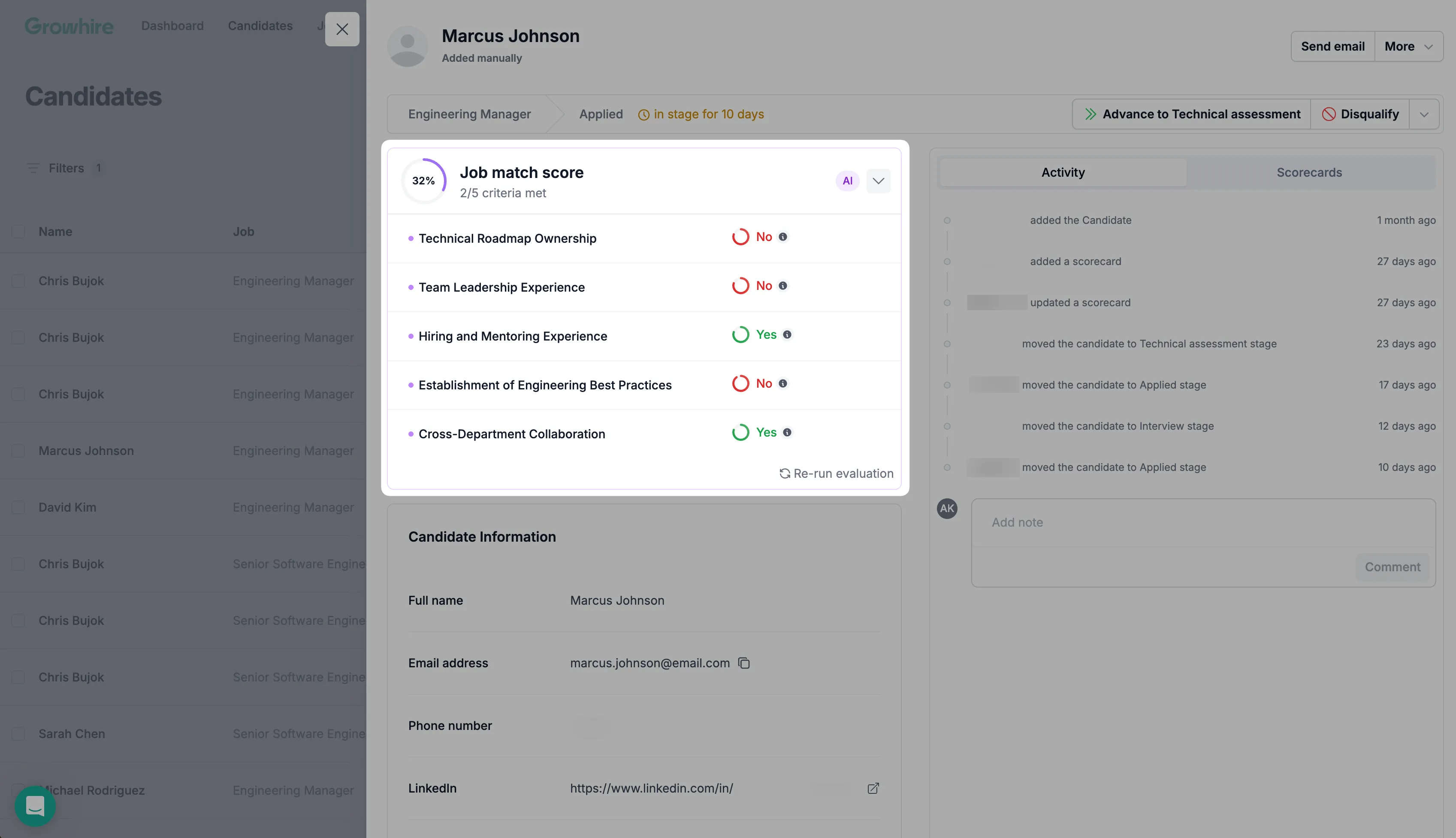
You can view the criteria each candidate met or didn’t from their profile — click the Job match score card to expand the breakdown. From there you can also click Re-run evaluation to re-score them against the latest criteria (we don’t rescore automatically when you change criteria).
Customizing your AI Job Match criteria
Section titled “Customizing your AI Job Match criteria”Every candidate who applies to a job in Growhire gets an AI Job Match score — a 0–100 rating (shown as a percentage and an N/M criteria met breakdown) of how well their resume fits the role. The score appears in the candidate list and on each candidate’s profile, and you can sort and filter on it to surface the strongest applicants first.
Until now, the criteria behind that score were auto-generated from the job description and you couldn’t change them. You can now edit, add, and remove criteria yourself, so the score reflects what you actually care about for the role — not just what the JD happens to mention.
How the score works
Section titled “How the score works”When a candidate applies, Growhire reads their resume and evaluates it against a list of scoring criteria attached to the job. Each criterion is a single, specific thing to look for (e.g. “5+ years of product management experience”). The candidate either meets a criterion or doesn’t, and the share of criteria met becomes their AI Job Match score.
Opening the criteria editor
Section titled “Opening the criteria editor”-
Open the job from Jobs in the top nav.
-
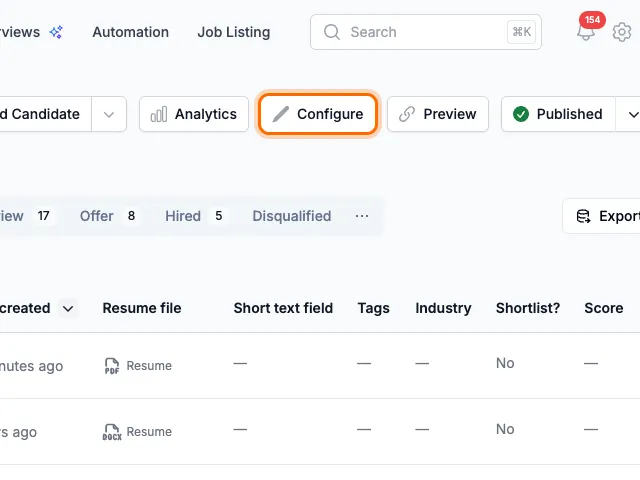
Click Configure in the top-right of the job page.
-
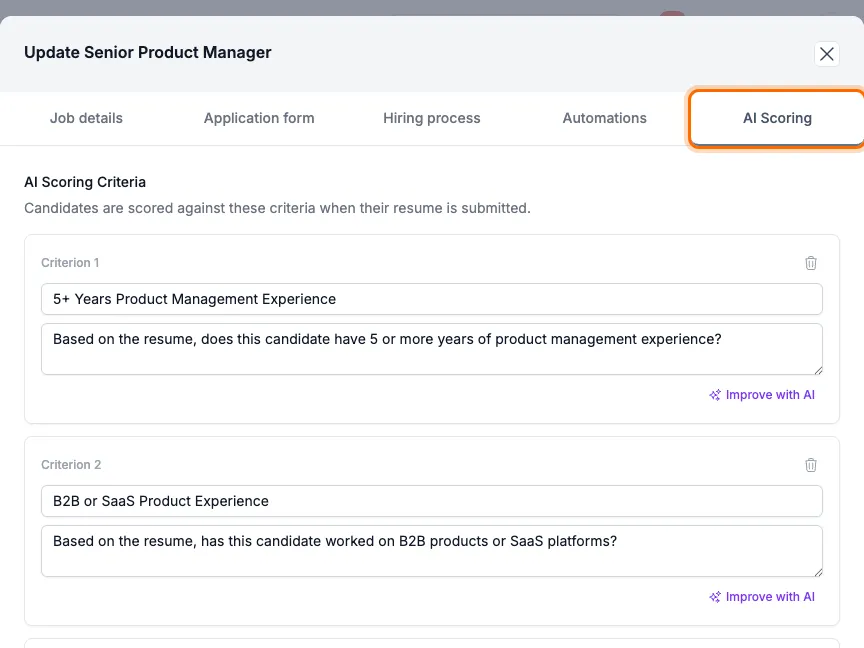
In the side panel, switch to the AI Scoring tab.
Starting from scratch (no criteria yet)
Section titled “Starting from scratch (no criteria yet)”If a job has no criteria yet, the AI Scoring tab shows an empty placeholder with two options:
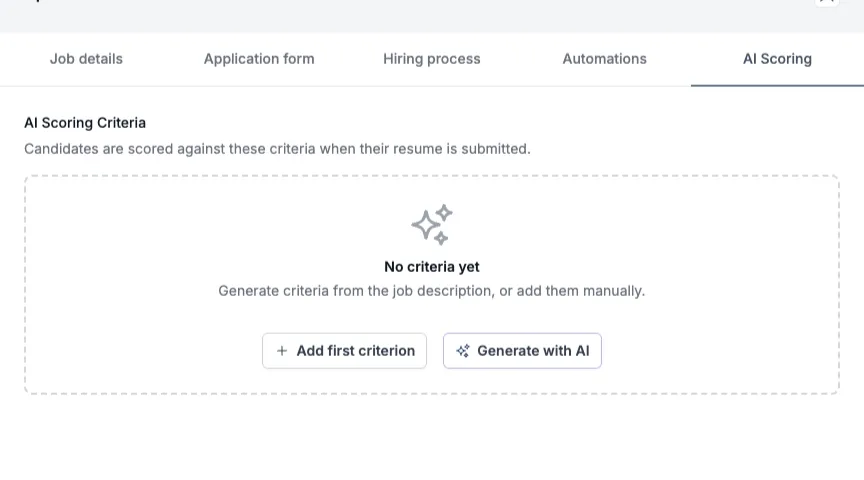
- Generate with AI — Growhire proposes a starting set of criteria based on the job description. One click; not automatic.
- Add first criterion — start with a blank criterion and write your own from scratch.
Once criteria exist, you can edit them, add more, or remove the ones that don’t fit.
Anatomy of a criterion
Section titled “Anatomy of a criterion”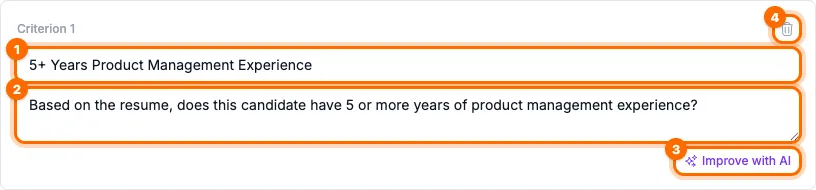
- Title — a short label (e.g. “B2B or SaaS Product Experience”). This is what shows up in the candidate’s score breakdown.
- Description — the instruction the AI uses when reading the resume. Phrase it as something the AI can answer from the resume, e.g. “Based on the resume, has this candidate worked on B2B products or SaaS platforms?”
- Improve with AI — rewrites the description into a clearer, more evaluable form. Useful when you’ve jotted down a rough idea and want a tighter version before saving.
- Remove — deletes this criterion. Removed criteria show a Deleted · Undo row until you save, so you can recover from accidents.
Edit any field directly. Changes are persisted when you click Save changes at the bottom of the panel; Cancel discards everything (including any deletions you haven’t saved yet).
Adding a criterion
Section titled “Adding a criterion”Click Add criterion at the bottom of the list, then fill in the title and description. There’s no hard limit, but 4–6 well-chosen criteria typically produce a more useful score than a long list of overlapping ones.
Tips for writing good criteria
Section titled “Tips for writing good criteria”- Be specific and binary-ish. “Has shipped a B2B SaaS product as PM” scores more reliably than “Is a strong product thinker.”
- Stick to what’s visible on a resume. The AI scores from the resume only — soft skills, culture fit, and things that only come up in conversation belong in interviews, not here.
- One idea per criterion. Split “5+ years experience and technical background” into two criteria — otherwise a candidate strong on one and weak on the other gets an ambiguous score.
- Match your must-haves to the role. Generic criteria produce generic scores. The more your criteria reflect the actual bar for this role, the more the score will match your gut on each candidate.
When changes take effect
Section titled “When changes take effect”New and updated criteria apply to candidates who apply after you save. We don’t automatically rescore candidates who applied earlier — their scores stay as they were originally generated, against whatever criteria were in place at the time.
If you want a previous candidate scored against the latest criteria, open their profile, click the Job match score card to expand it, and click Re-run evaluation at the bottom-right of the card. Re-running is always available — even if the criteria haven’t changed.
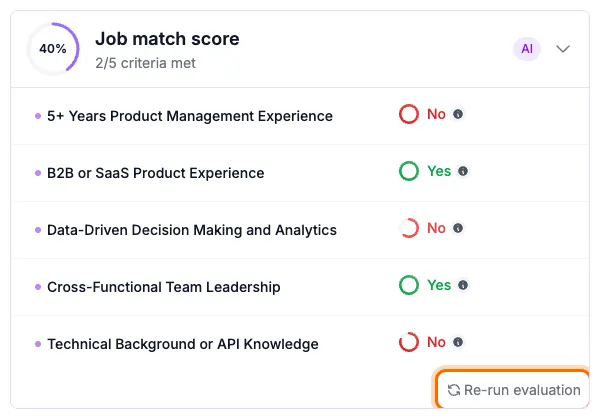
Will editing criteria automatically rescore existing candidates? No. Existing scores are frozen at the criteria that were in place when the candidate applied. Use Re-run evaluation on the candidate’s profile to score them against the current criteria.
Do I have to write criteria from scratch for every job? No — click Generate with AI in the AI Scoring tab and Growhire proposes a starting set based on the job description. You can keep, edit, or remove what’s generated.
Where does the score show up? In the candidate list (the “AI Job match score” column, which you can sort and filter on), and on the candidate’s profile. On the profile, click the Job match score card to see how they scored on each individual criterion.