Scorecards
Learn how to use scorecards in a candidate profile.
Create Scorecard Templates
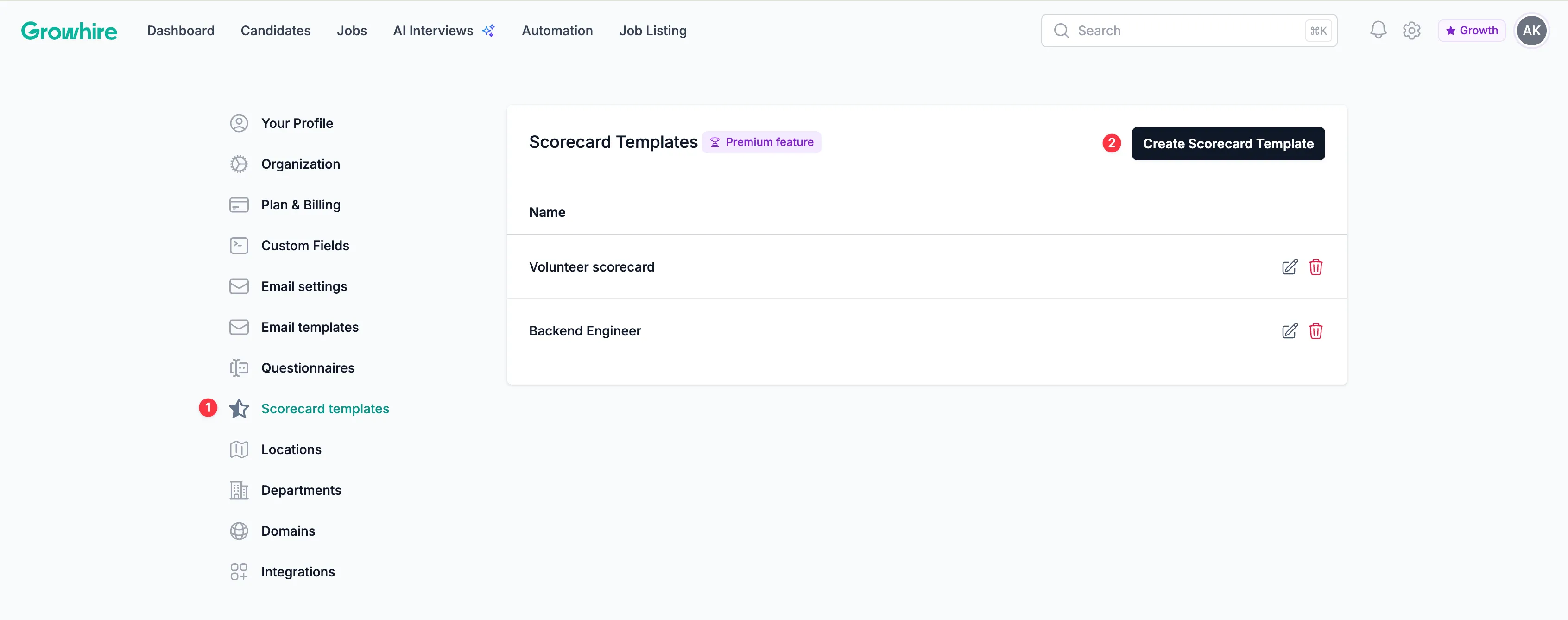
Section titled “Create Scorecard Templates”In your account settings, navigate to the Scorecard templates section. Then, click Create Scorecard Template.
A modal will appear where you can modify the template name and questions. By default, all scorecards have an Overall recommendation rating.
When adding a question, select Add field, then determine the question type from the dropdown list.
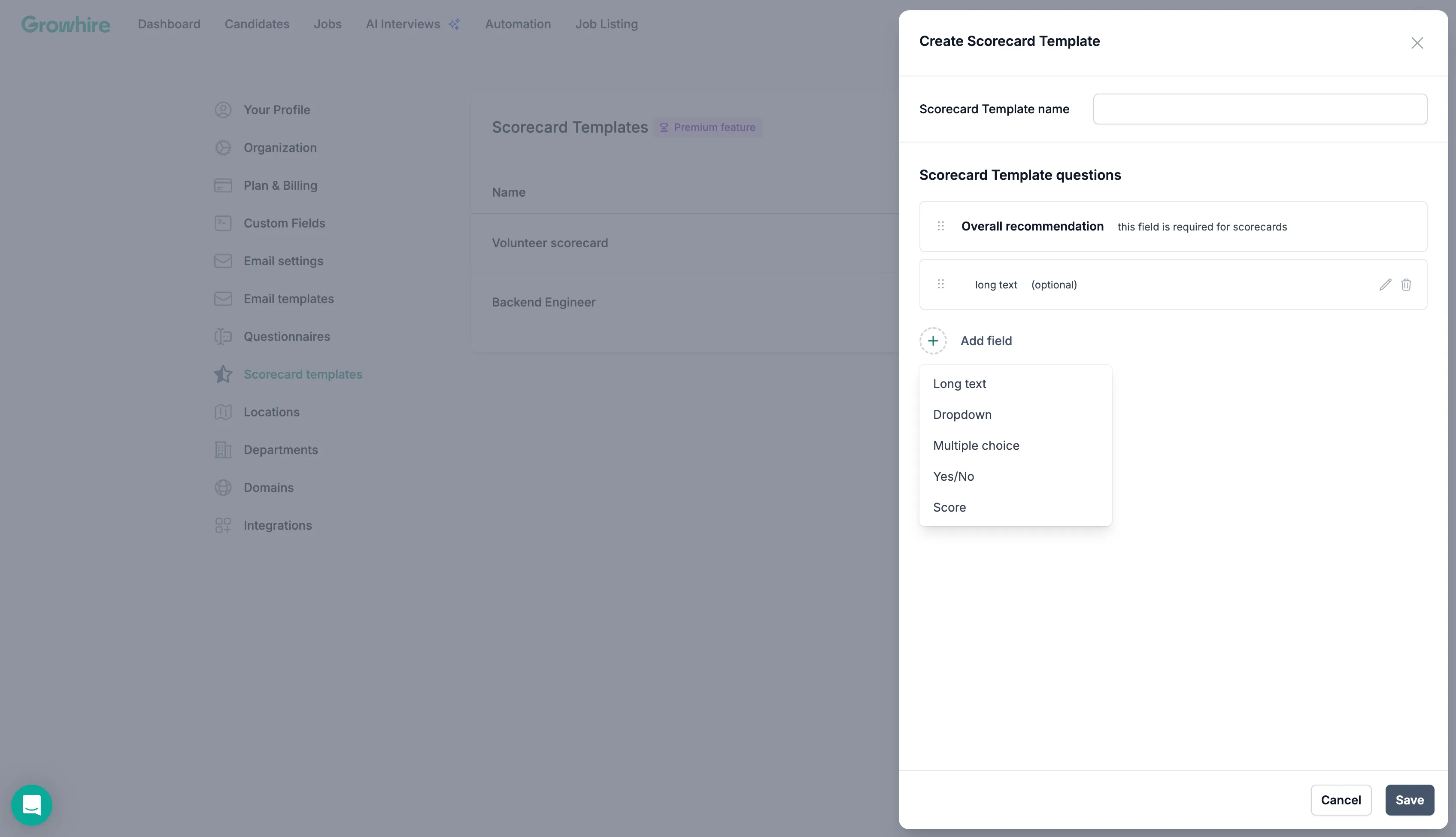
Provide a field label and lastly, toggle if the question is required to answer. Once the scorecard is saved, you can modify it or begin using it on candidate profiles.
Using Scorecards
Section titled “Using Scorecards”Start by selecting any candidate to pull up their profile. On the right-hand side, toggle from Activity to Scorecards.
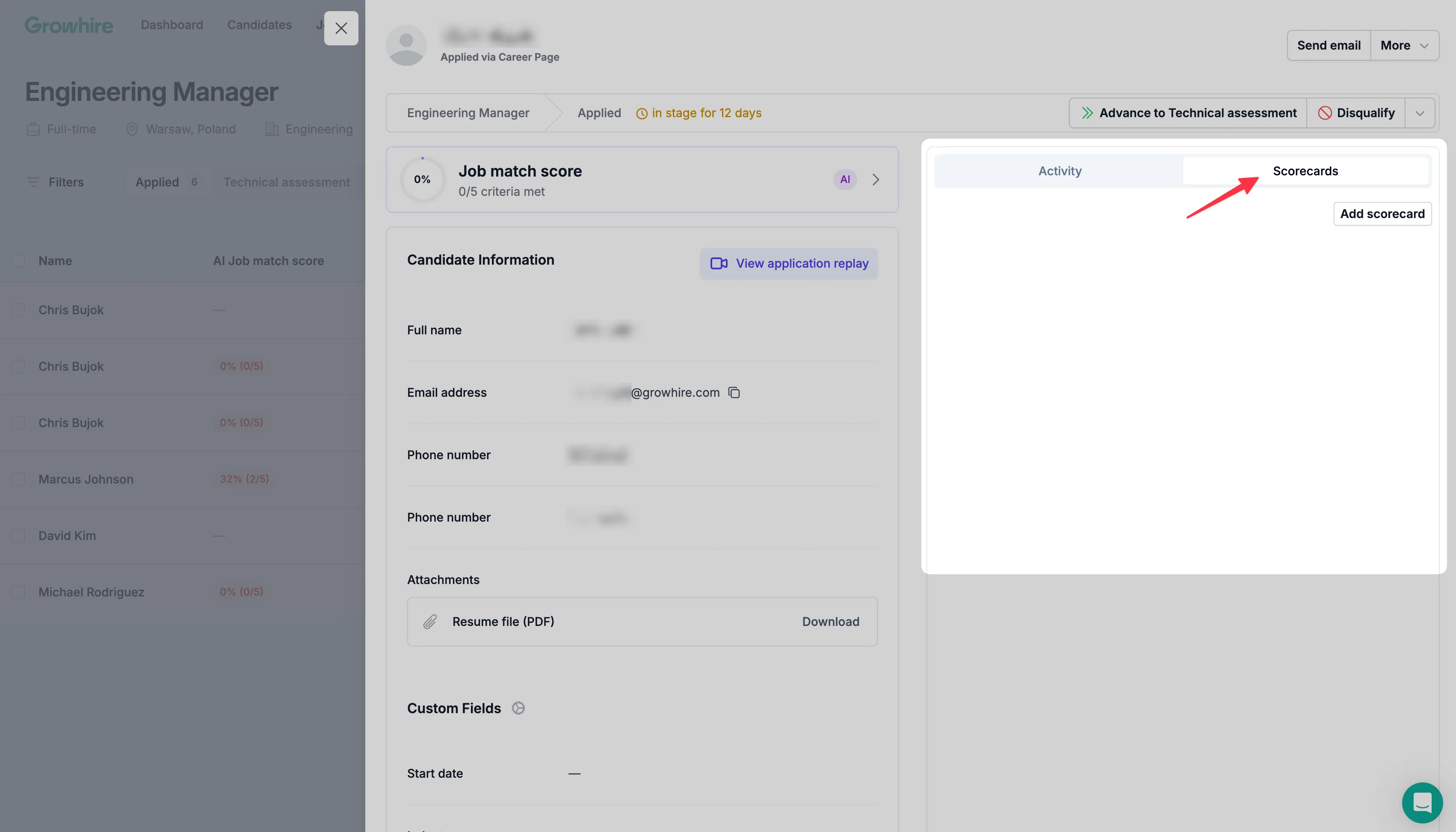
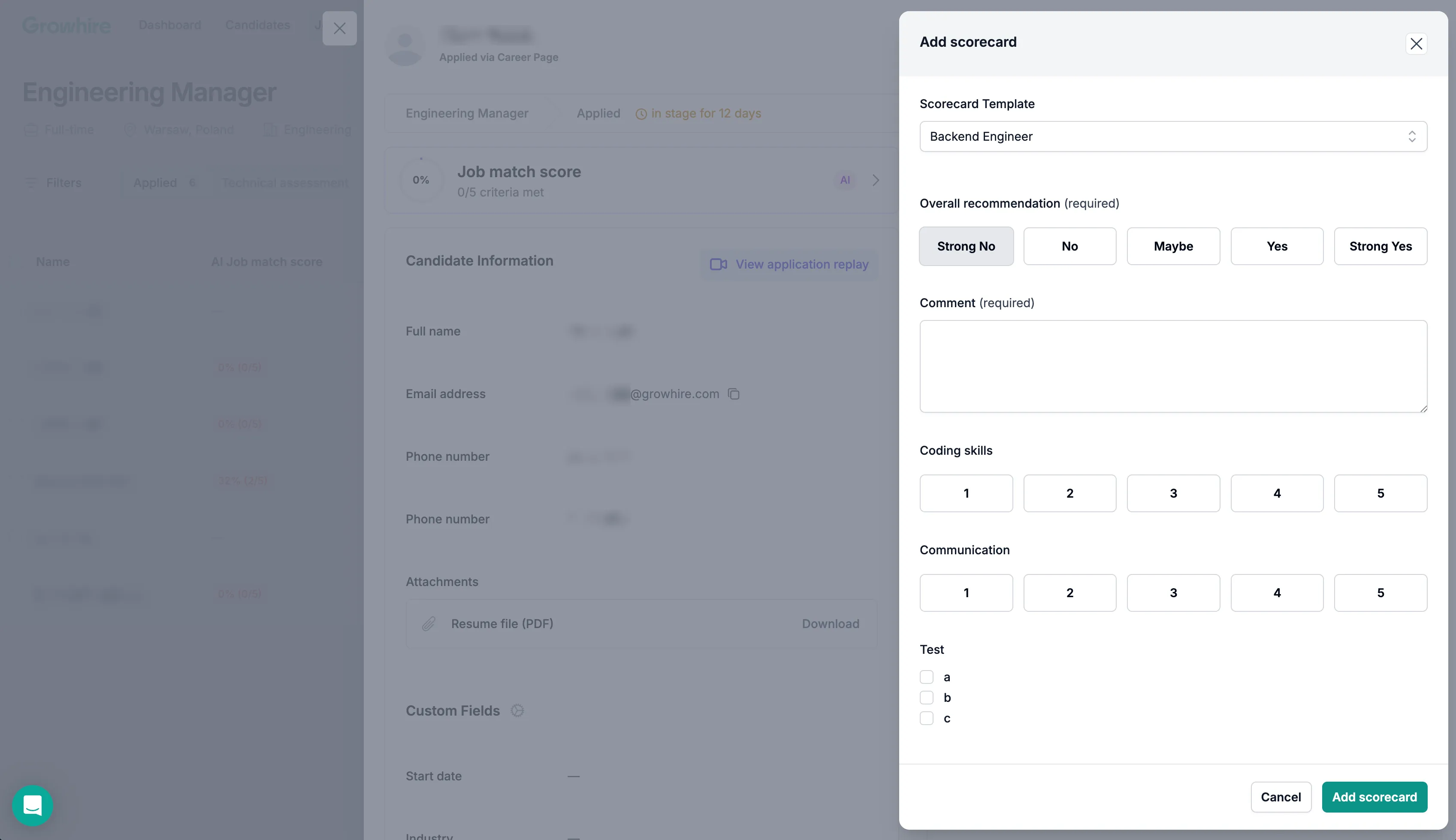
Click Add scorecard and select from your list of templates. Then, begin updating the scorecard with your notes and click Add scorecard to save your progress.
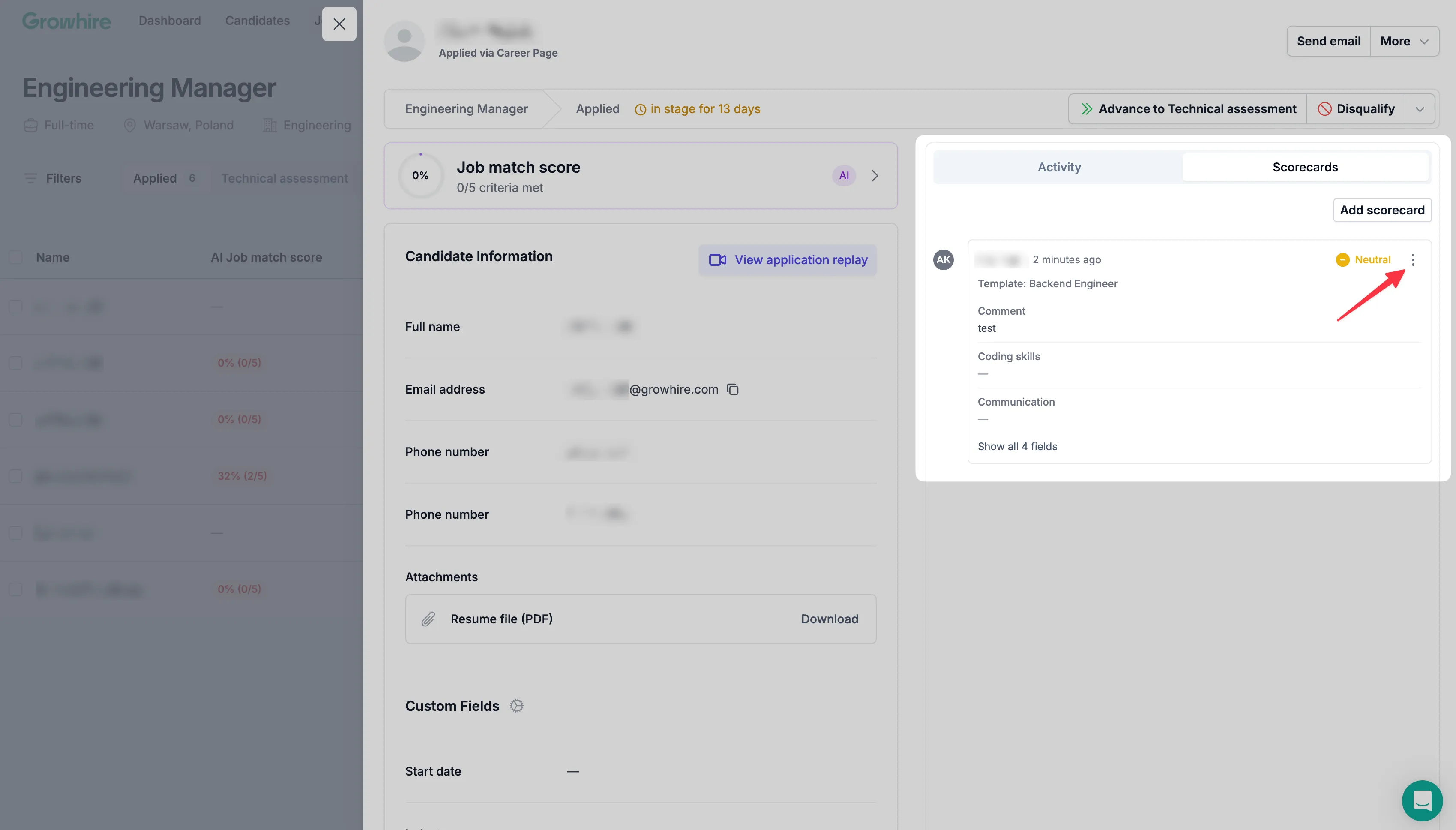
If you need to make any changes, you can click the three dots to edit or delete the scorecard.