
Adding & Importing Candidates
Importing candidate data, jobs, and other information from a previous ATS
Adding candidates
Section titled “Adding candidates”You can manually add candidate information by either navigating to Candidates or Jobs in the main navigation bar. Then, select + Add candidate and choose between Uploading Resumes or Forward to Email.
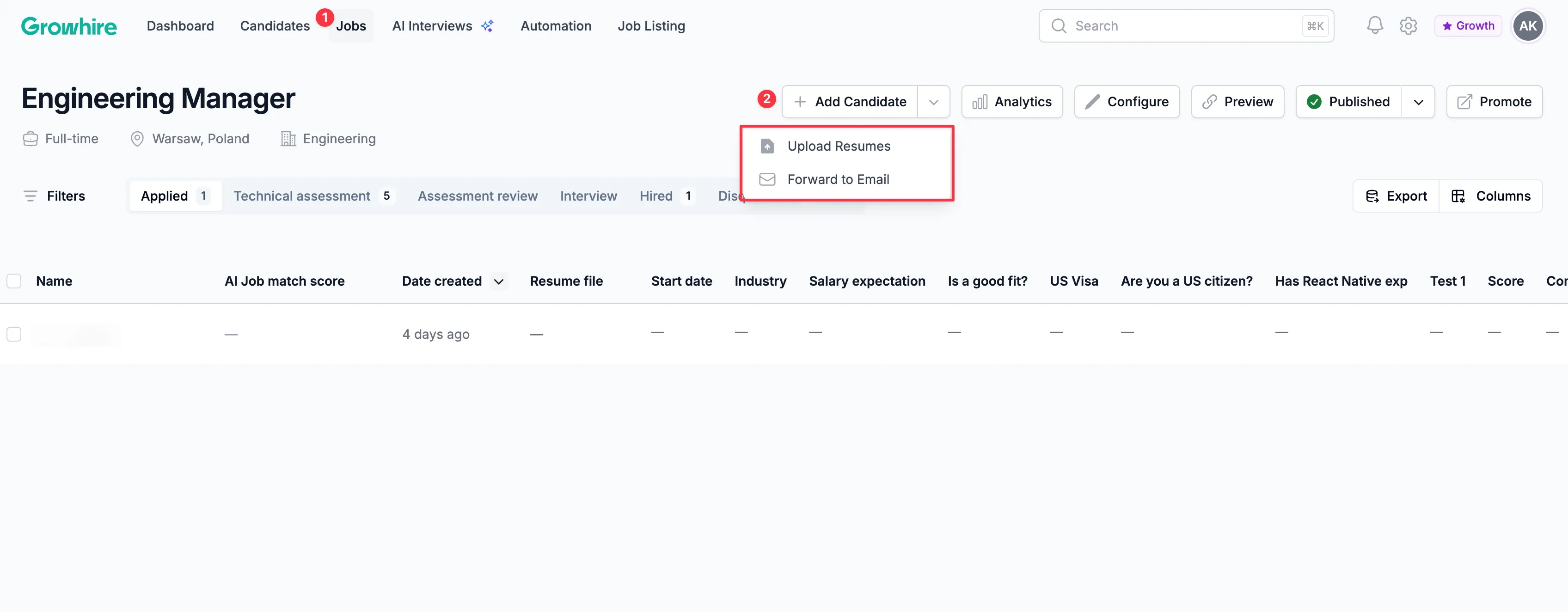
Option 1: Uploading resumes
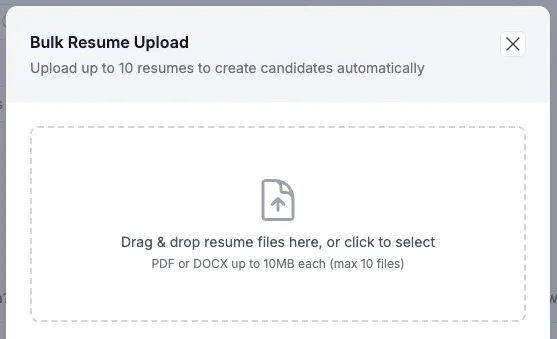
Section titled “Option 1: Uploading resumes”You can bulk upload candidates by dragging and dropping up to 10 resume files or selecting files from your system. Growhire will automatically create candidate profiles and parse the data.
Option 2: Forward candidate resumes via email
Section titled “Option 2: Forward candidate resumes via email”You can add candidates to Growhire by forwarding emails to your dedicated Growhire email address with the candidate’s resume attached or included in the message body.
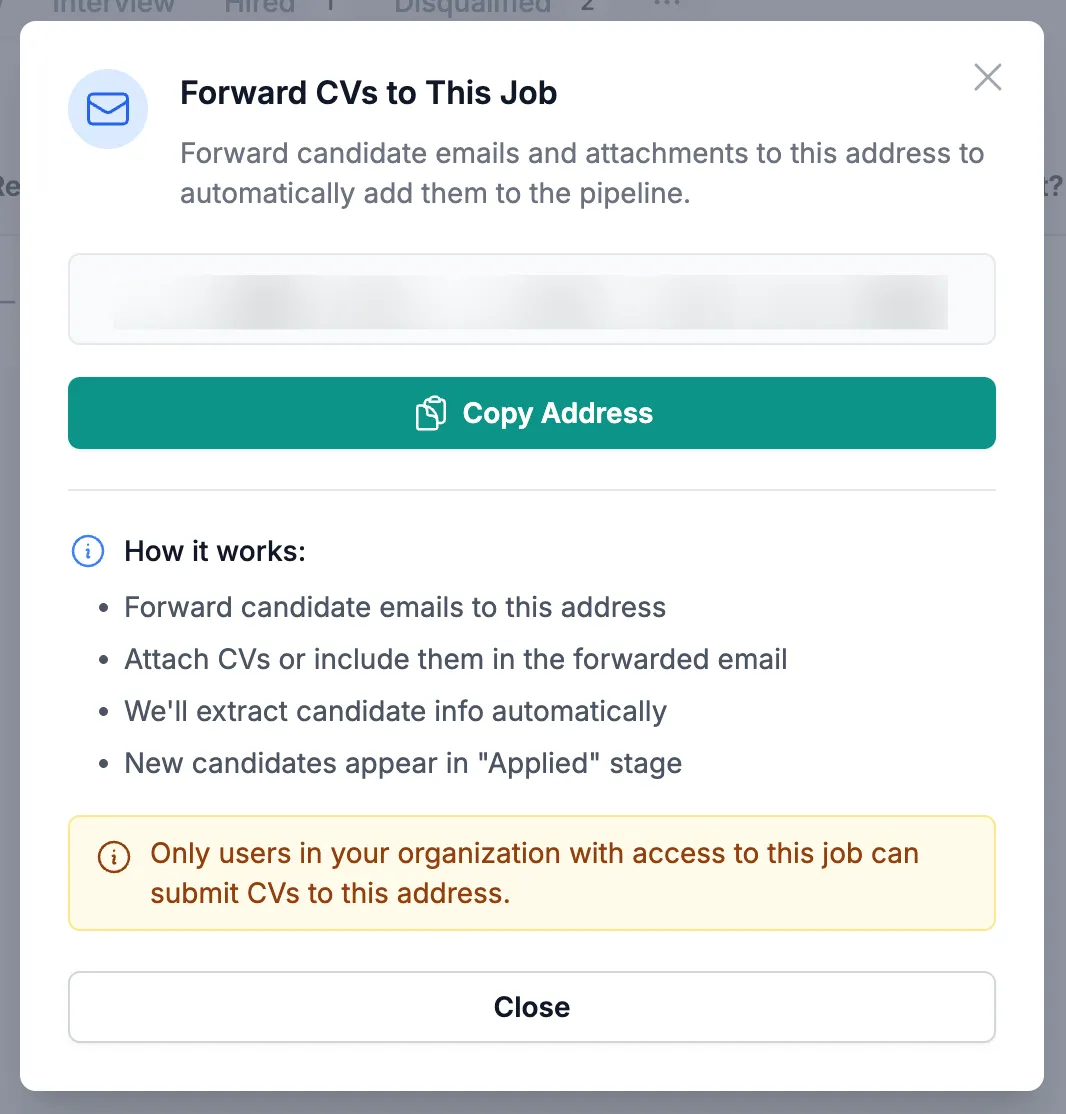
The platform will then parse candidate information and create a new profile in the Applied stage.
Import CSV or JSON files- Growth or Scale plans
Section titled “Import CSV or JSON files- Growth or Scale plans”Contact support at support@growhire.com to learn more and begin the process of migrating your candidate data from your current provider.
Please note this feature is available for customers on Growth or Scale plans.