
Automate tasks and emails
Learn how to create, manage, and update your automations to streamline your hiring process and keep your workflows organized.
Creating a workflow group
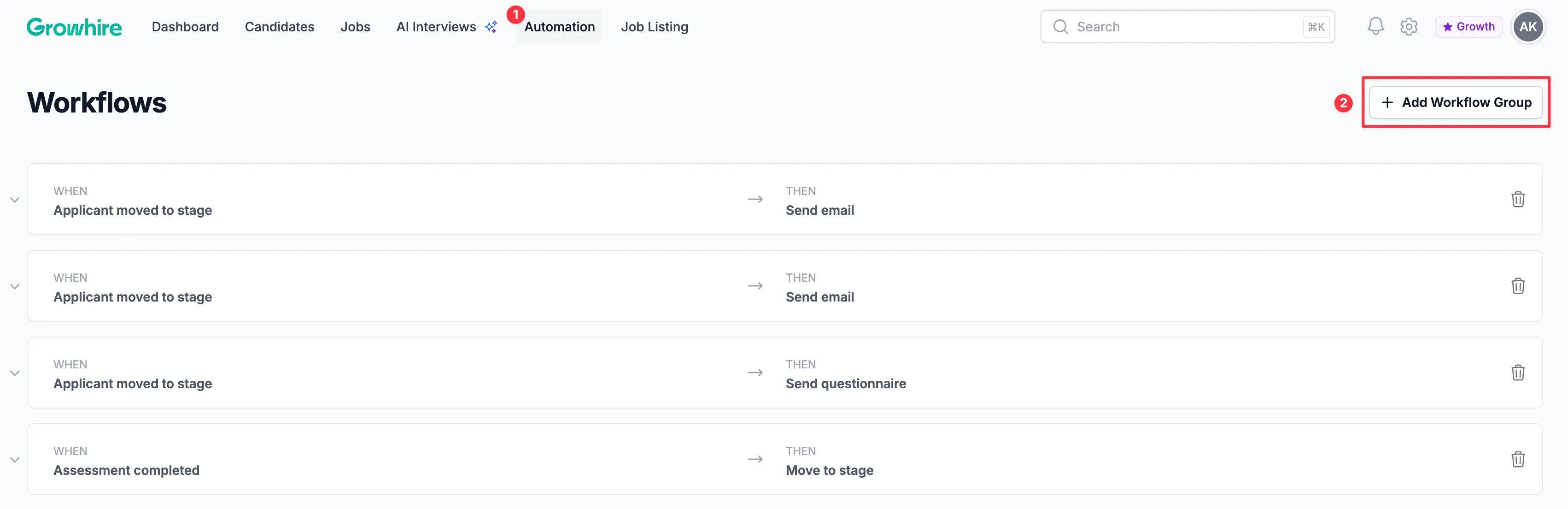
Section titled “Creating a workflow group”Navigate to Automations then select Add Workflow Group.
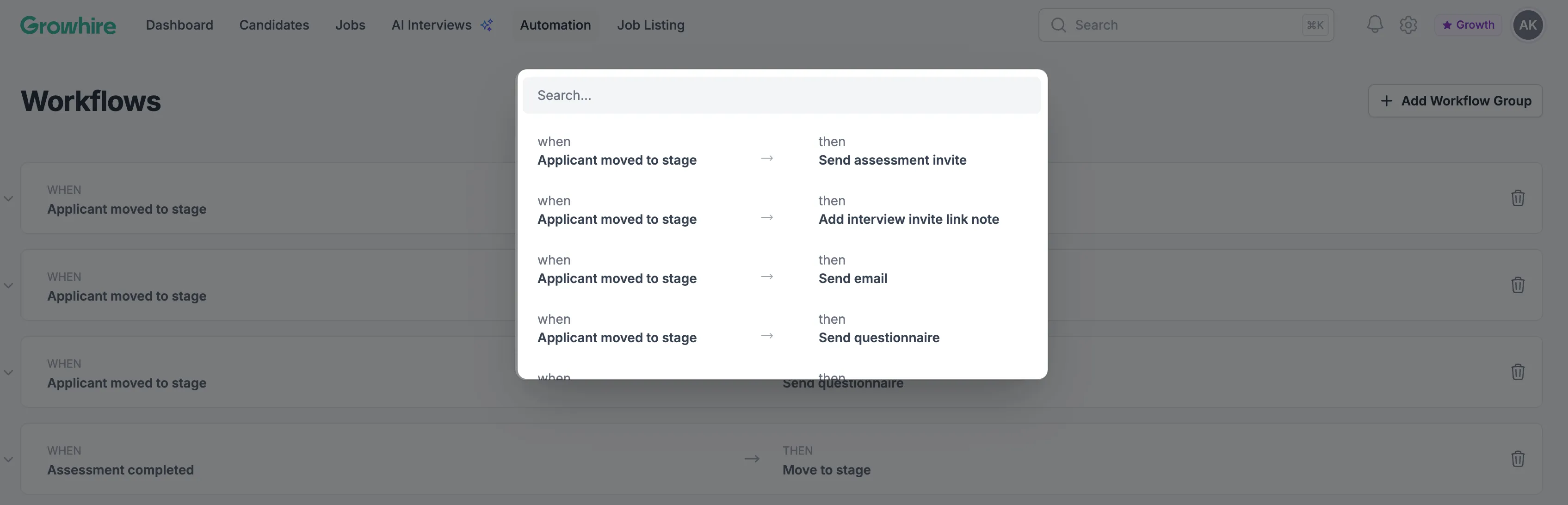
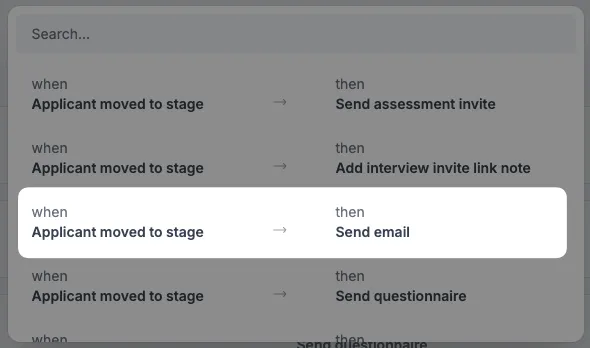
A modal will appear with a list of all possible workflow types. You can filter them by typing into the “Search” field.
Once you select the workflow type you want to create, click Add first workflow and a new row will appear.
Depending on the automation type, different configuration options may appear. Complete the required fields and click Save changes to activate the automation.
Workflow types
Section titled “Workflow types”Each workflow is made up of two parts:
- When — the trigger that starts the automation
- Then — the action that happens automatically
When the trigger condition is met, the selected action runs immediately. The table below outlines the available workflow types.
| When (Trigger) | Then (Action) |
|---|---|
| Applicant moved to stage | Send assessment invite |
| Applicant moved to stage | Add interview invite link note |
| Applicant moved to stage | Send email |
| Applicant moved to stage | Send questionnaire |
| Assessment completed | Add note |
| Assessment completed | Move to stage |
| Assessment scorecard updated | Add note |
| Assessment scorecard updated | Move to stage |
| Interview finished | Add note |
| Interview finished | Move to stage |
| Interview scorecard updated | Add note |
| Interview scorecard updated | Move to stage |
Duplicating workflow groups
Section titled “Duplicating workflow groups”To quickly create multiple automations with similar settings, click the Duplicate icon on the right side of a workflow group.
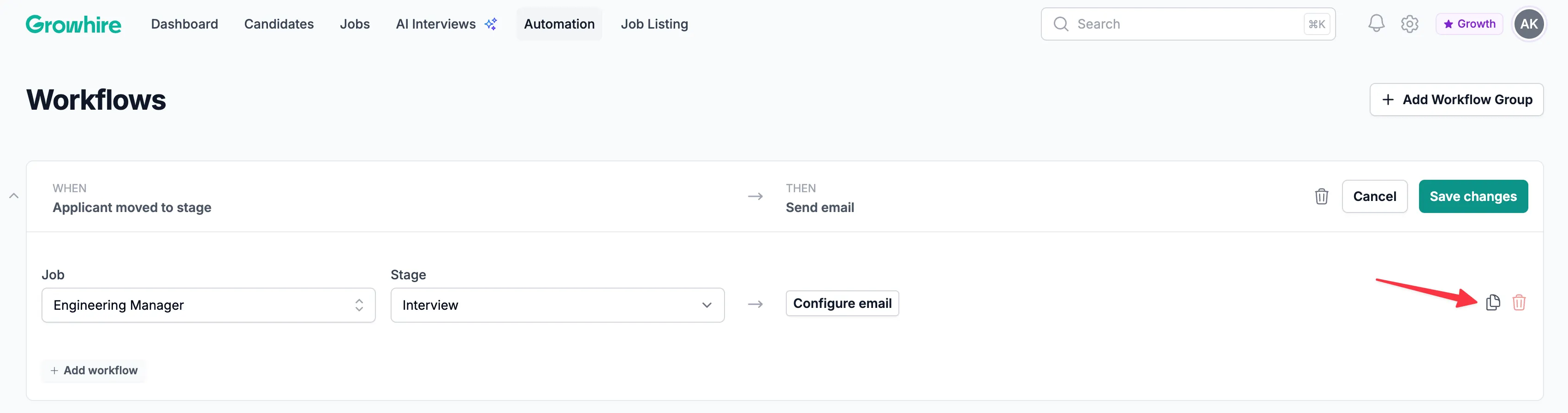
This creates a copy with the same configuration as the original. To finish, update at least one setting—for example, select a different job while keeping the same stage and assessment.
Sending automatic emails to candidates
Section titled “Sending automatic emails to candidates”You can send an email to a candidate automatically when they appear in a specific job stage.
To enable this, follow the steps below:
-
Create “When applicant moved to stage → Send email” workflow group:
-
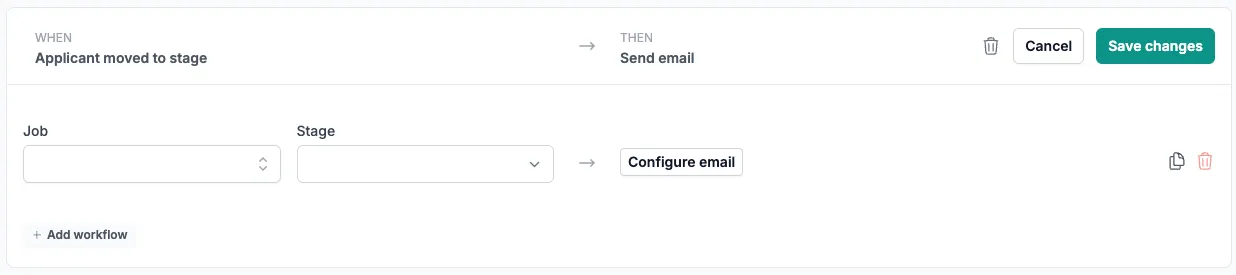
In the new workflow group, click the button to add a new workflow
-
Select the job and stage for the trigger:
-
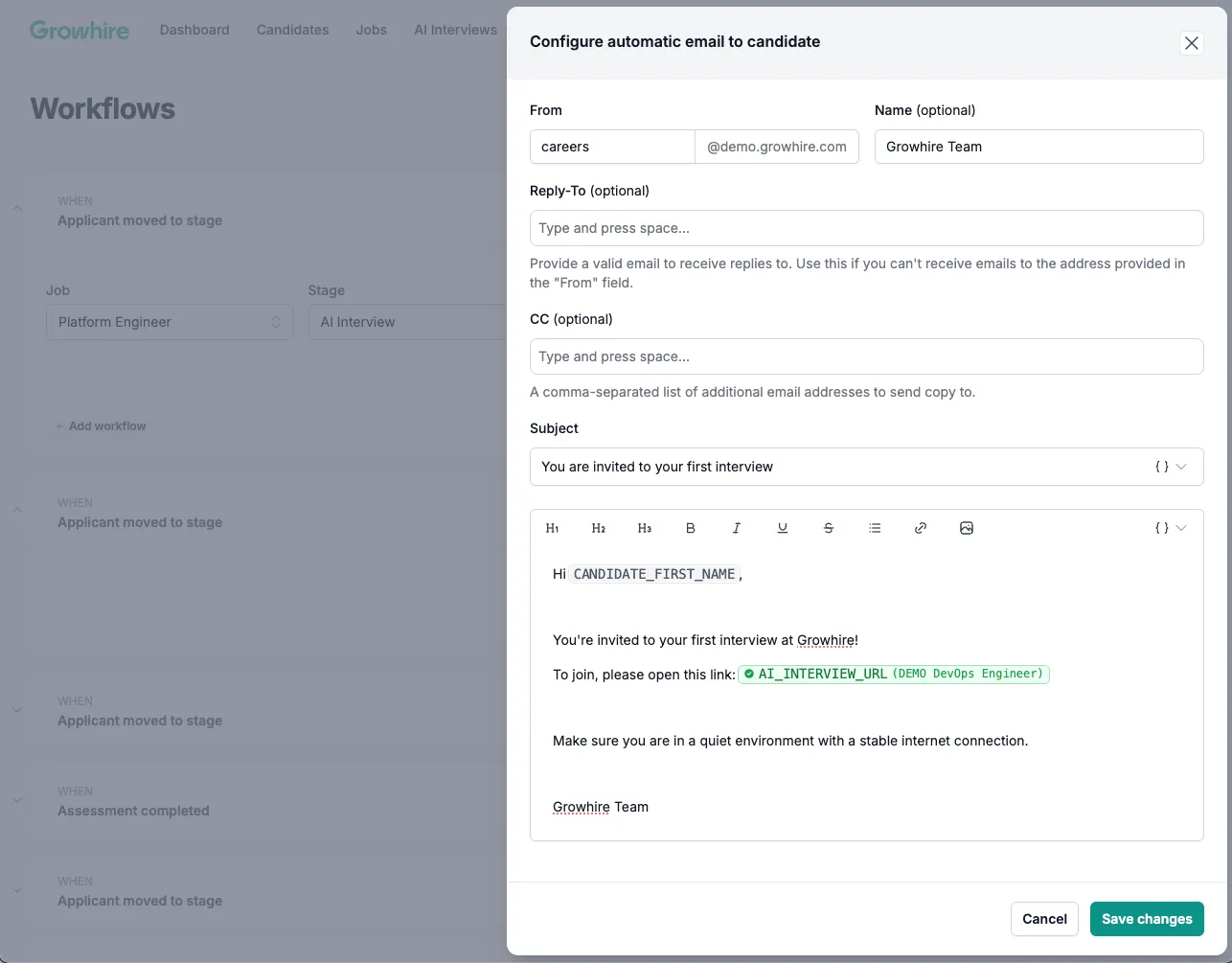
Click Configure email to set up your email details
-
Once ready, save your changes. From now on, candidates will receive that email as soon as they’re moved to the configured stage.