Questionnaires
A questionnaire is an asynchronous form that can be sent to a candidate either manually or automatically when they enter a specific job stage.
Each candidate receives a unique link to complete the questionnaire. Once submitted, their responses can be viewed directly within their candidate profile.
Creating a Questionnaire
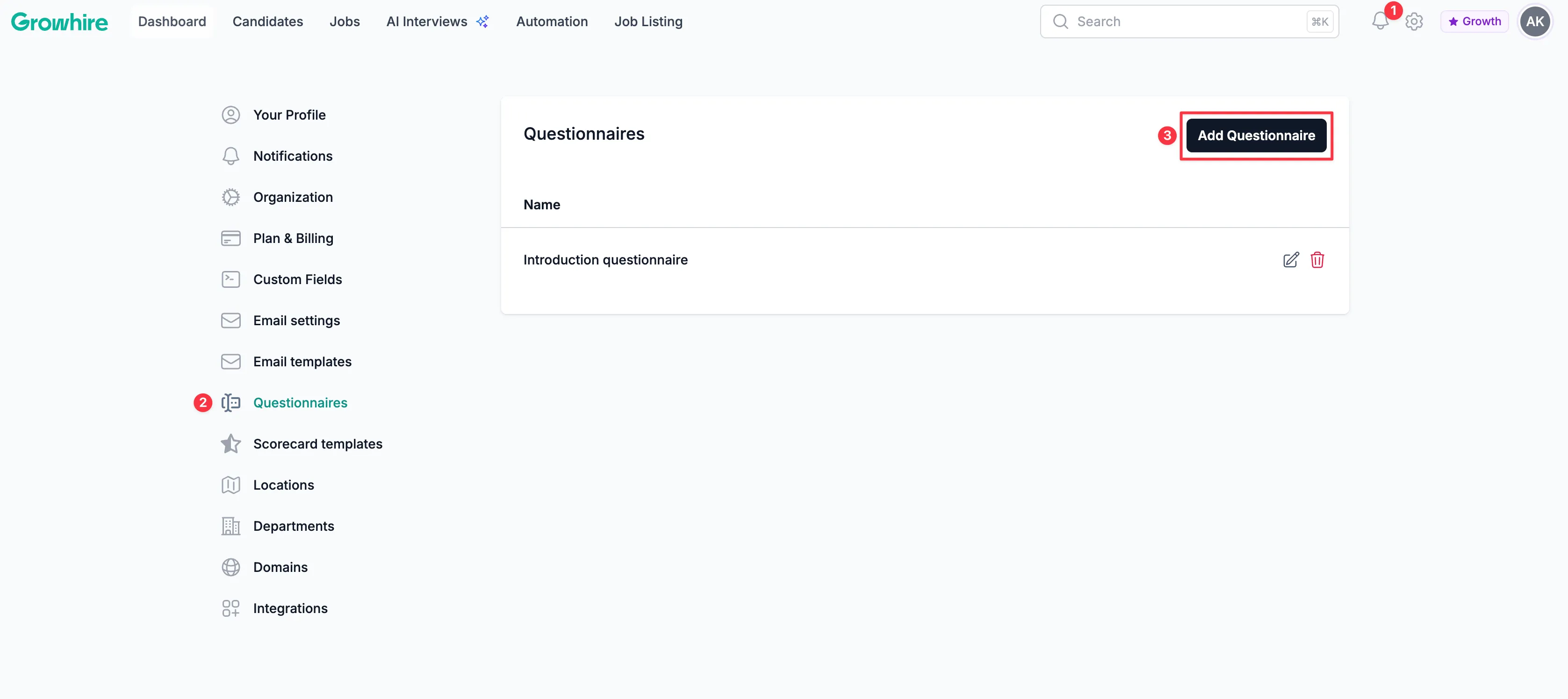
Section titled “Creating a Questionnaire”To create a questionnaire, go to your Account settings, navigate to Questionnaires, and then click Add Questionnaire.
In the modal that appears, select the plus sign to Add field.
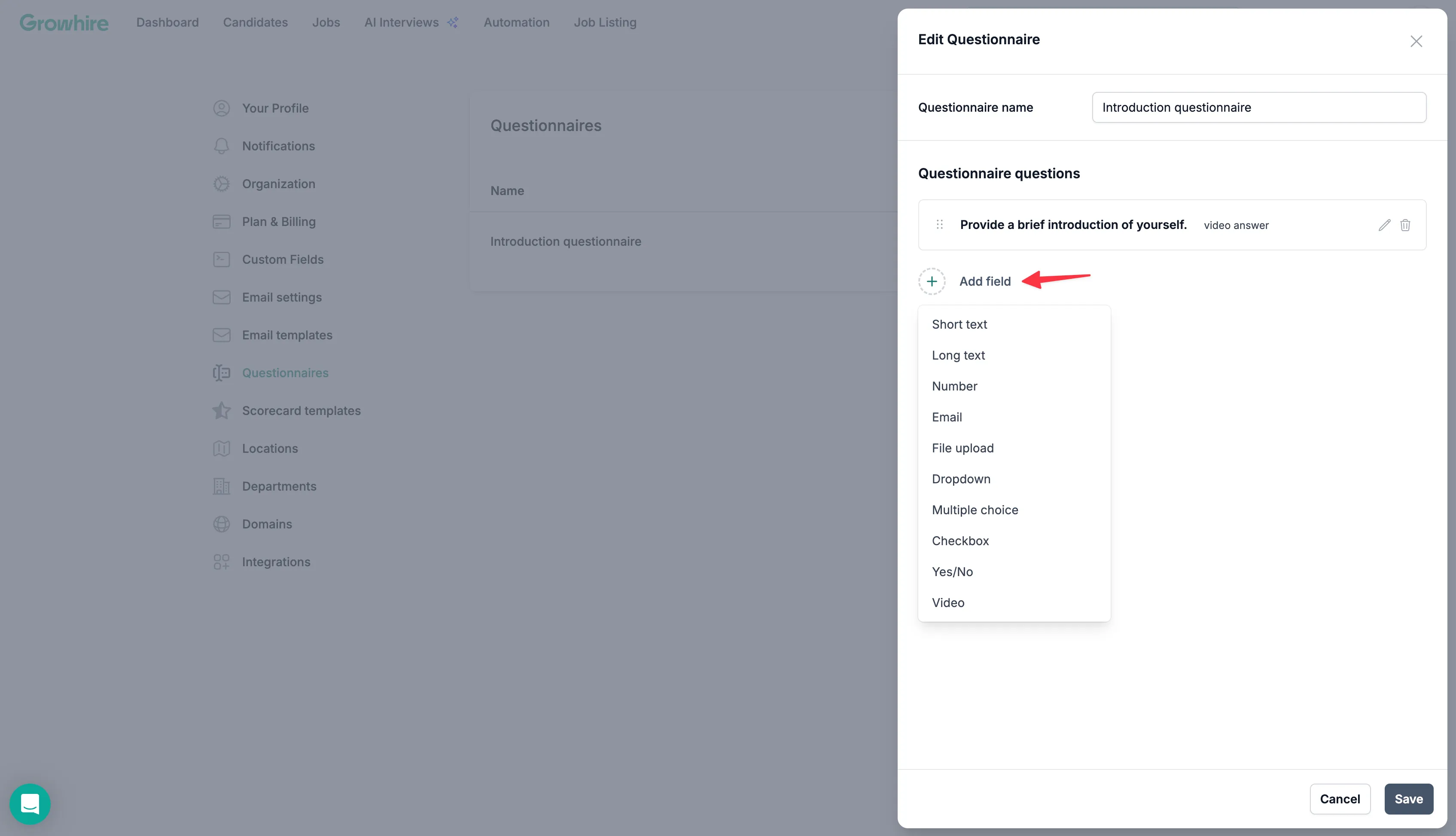
The following field types are available:
| Field type | Description |
|---|---|
| Short text | Candidate enters a brief written response |
| Long text | Candidate provides a detailed written response |
| Number | Candidate enters a numeric value |
| Candidate enters an email address | |
| File upload | Candidate uploads a file from their device |
| Dropdown | Candidate selects one option from a dropdown list |
| Multiple choice | Candidate selects one option from a list of choices |
| Checkbox | Candidate selects one or more options from a list |
| Yes/No | Candidate selects either yes or no |
| Video | Candidate records and submits a video response |
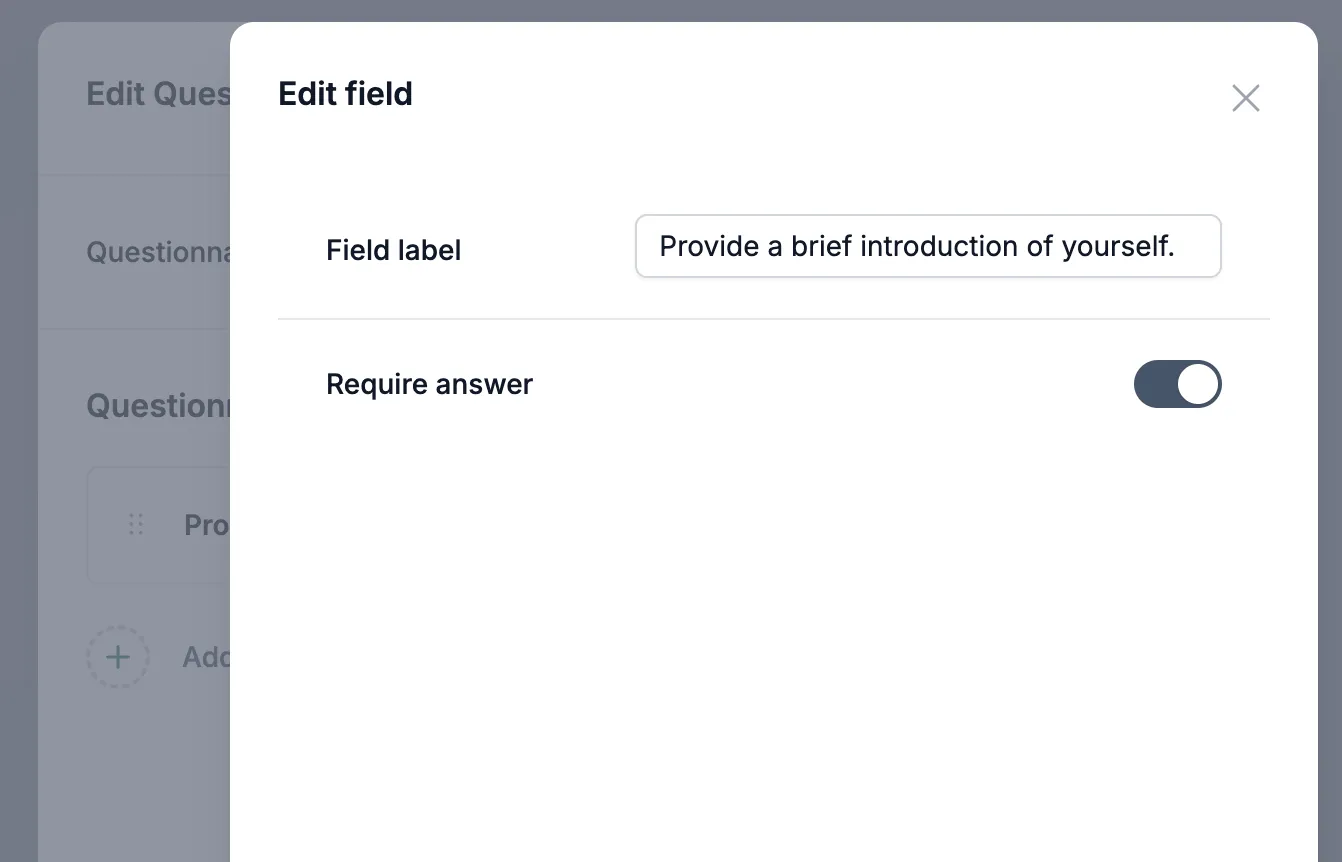
Each field requires a Field Label and a choice to Require an answer:
- Field Label: This is the word, short phrase, or question you are asking.
- Require answer: If enabled, candidates must answer before submitting the questionnaire.
Once the questionnaire is created, click Save.
Sending a Questionnaire Automatically
Section titled “Sending a Questionnaire Automatically”You can automate sending questionnaires based on candidate movement in your hiring pipeline.
-
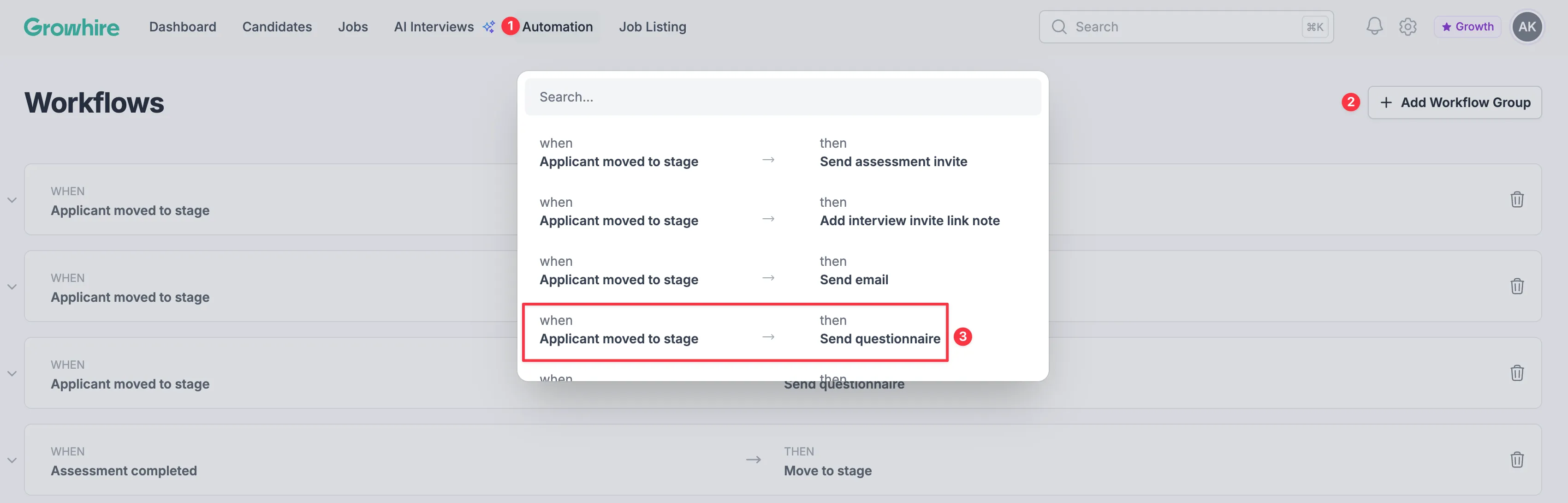
Start by navigating to Automation in the main navigation bar.
-
Next, click + Add Workflow Group, and then select:
when: Applicant moved to stage —> then: Send questionnaire
-
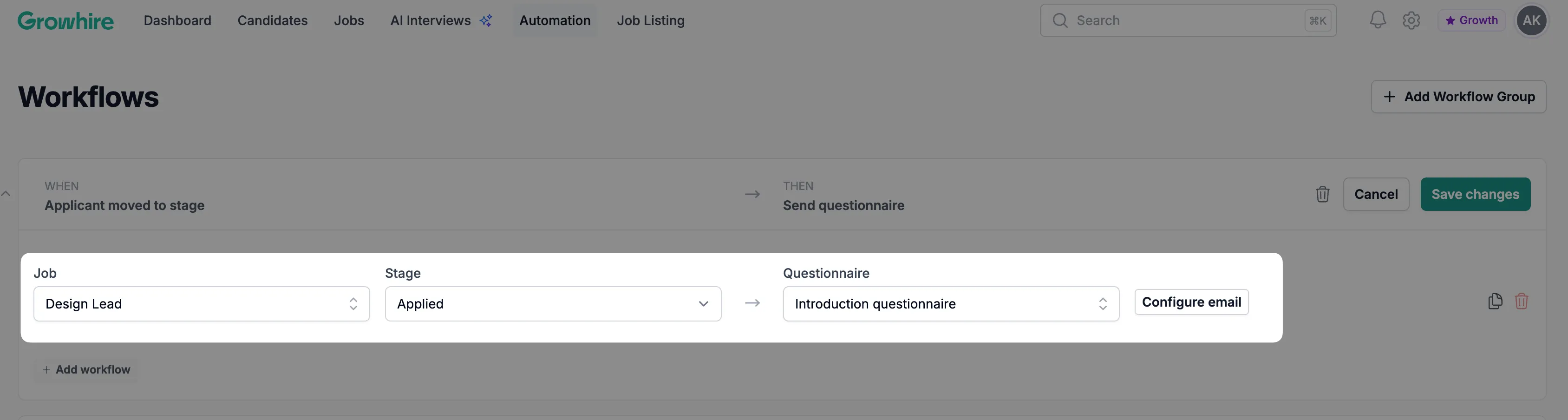
Make sure to sync the appropriate Job, Stage, and Questionnaire template.
-
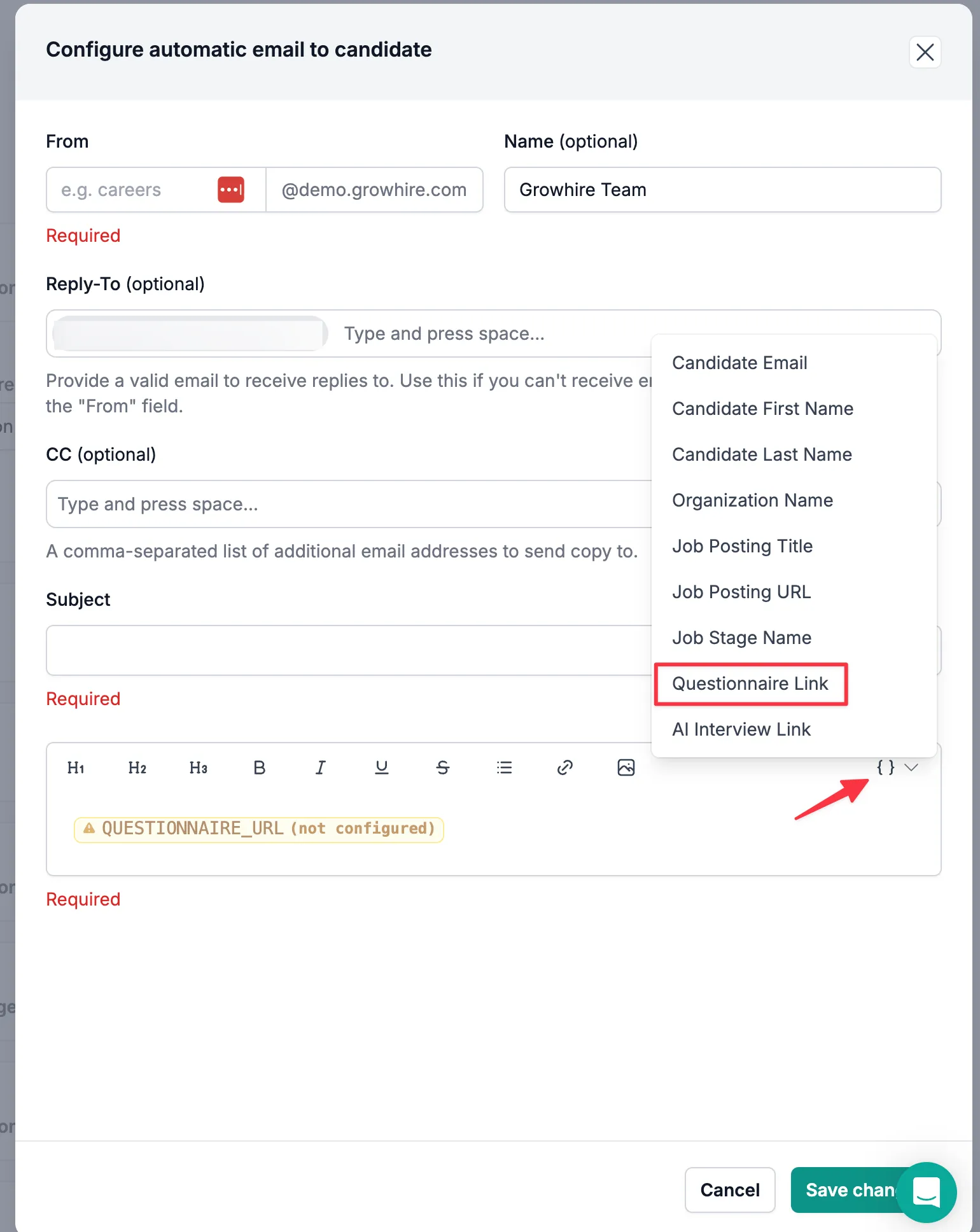
Then, configure the email. When editing the body of the message, make sure to select Questionnaire Link to include it.
-
Click the questionnaire link to configure it and then hit Save.
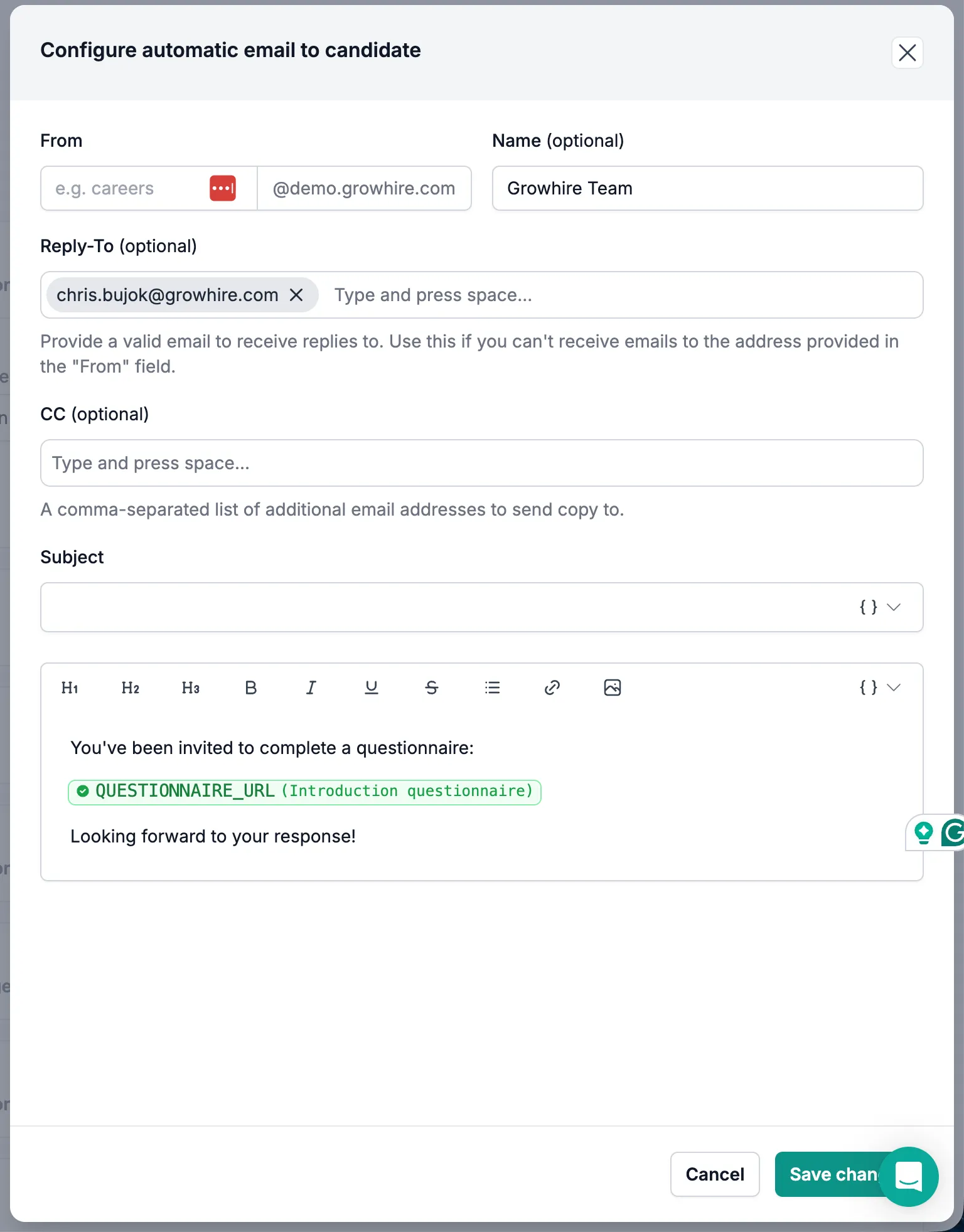
Moving forward, candidates will automatically receive the questionnaire when they enter the selected stage.
Sending a Questionnaire Manually
Section titled “Sending a Questionnaire Manually”You can also send a questionnaire manually at any time from a candidate’s profile.
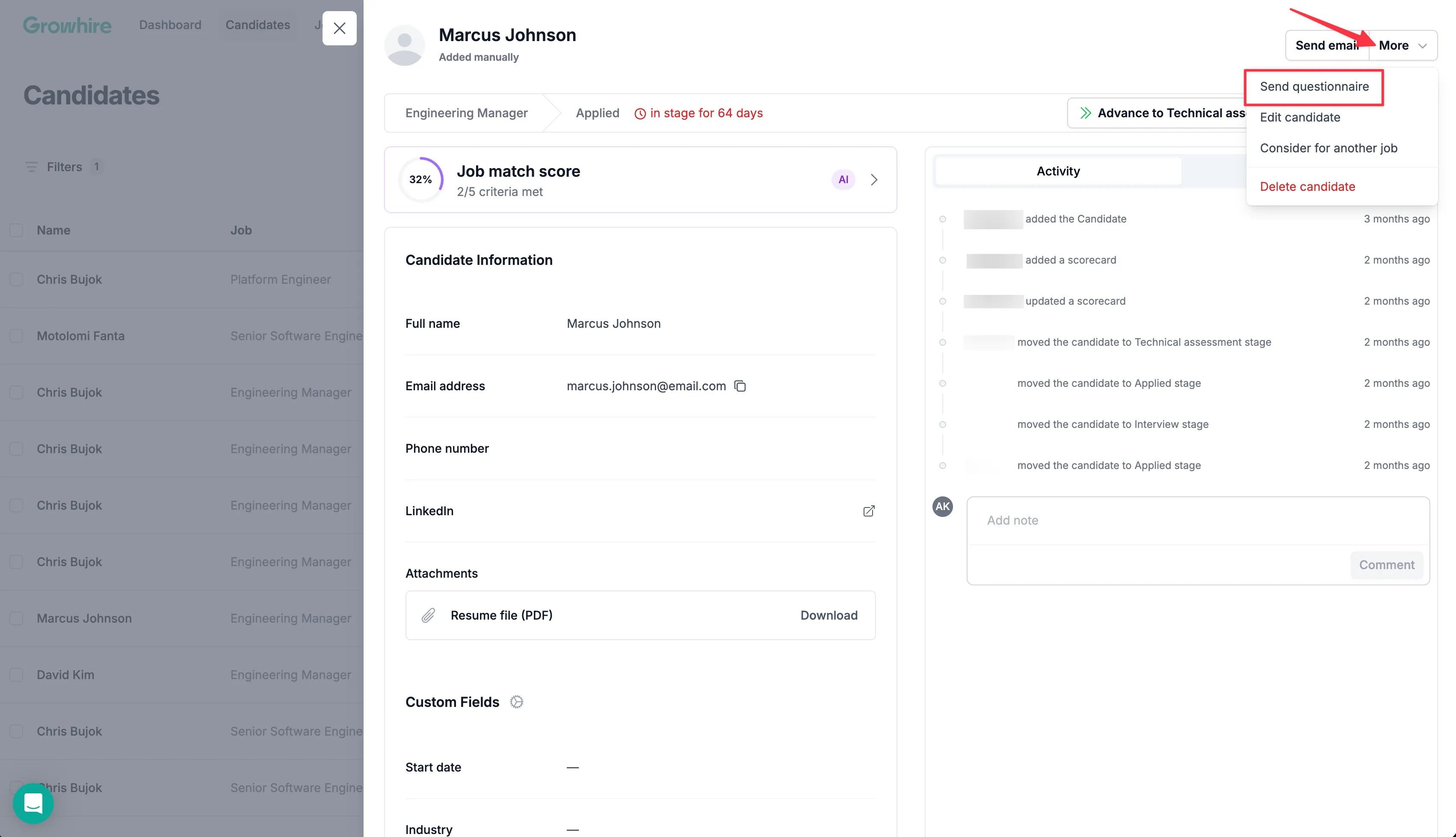
Start by opening any Candidate profile. Then, select More > Send questionnaire.