
Users & Permissions
Inviting your admin and setting their permission level
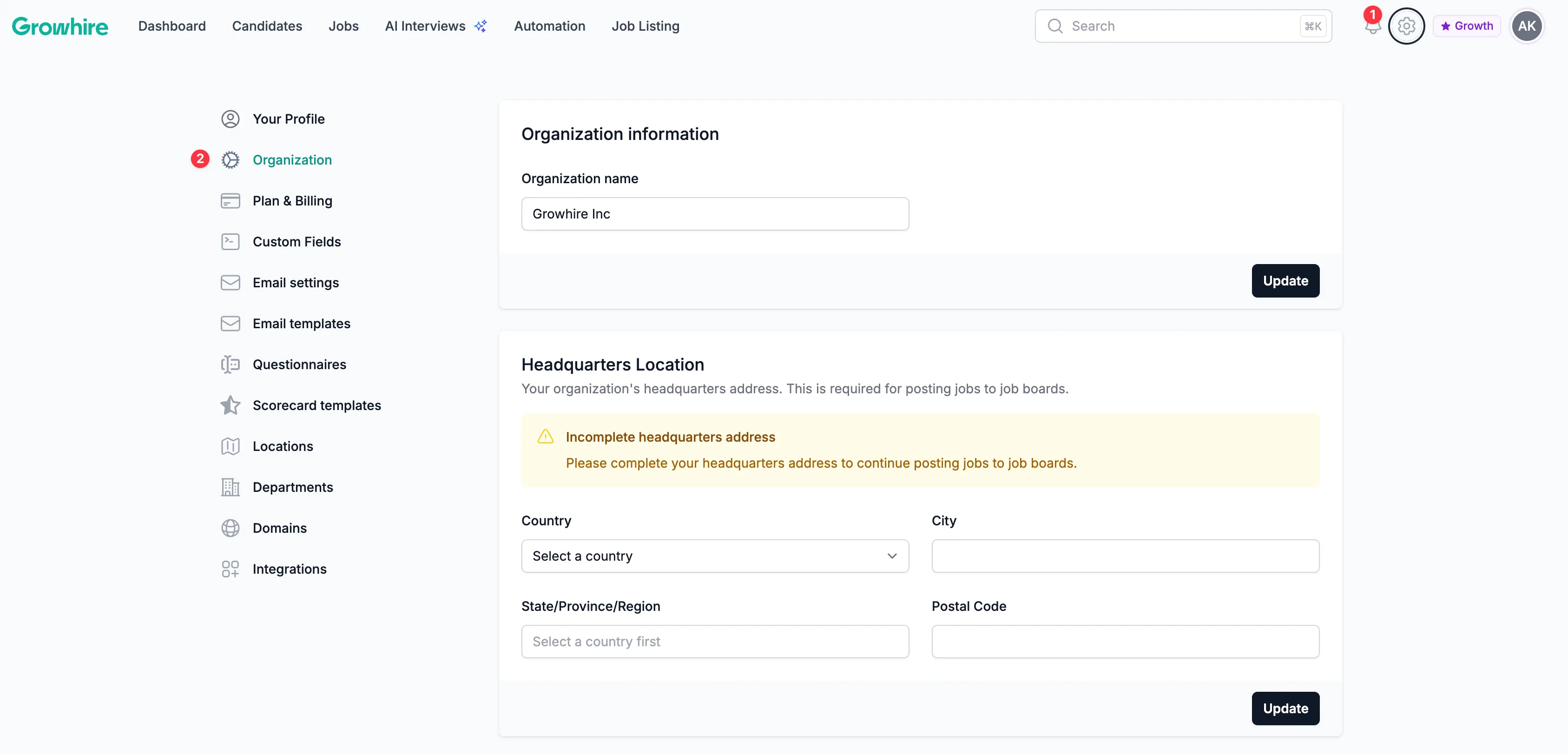
Section titled “Inviting your admin and setting their permission level”First, click the gear icon to access your Account Settings page and then navigate to Organization.
User Roles
Section titled “User Roles”You can have unlimited users for each role type. Please refer to the table below for permissions per role:
| Owner | Admin | Member | |
|---|---|---|---|
| Manage billing | Yes | No | No |
| Invite admin | Yes | Yes | No |
| Jobs | Create, modify, delete | Create, modify, delete | Limited access |
| Candidates | Create, modify, delete | Create, modify, delete | Create, modify, delete |
| Modify account settings | Yes | Yes | No |
| Automations | Create, modify, delete | Create, modify, delete | No access |
Member role permissions
Section titled “Member role permissions”The member role user has access only to jobs they’re assigned to.
To grant the user permission to a job, follow the steps below:
-
Navigate to Jobs and select the job you want to grant access to
-
Click Configure
-
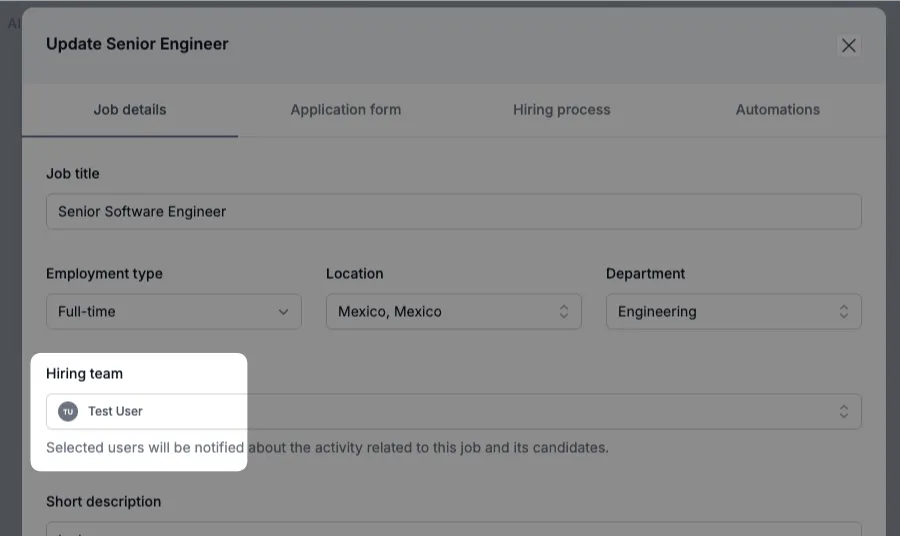
Select the user in the Hiring Team dropdown:
-
Click Save changes
The user has now access to this job and its candidates.